Backups: I'll do it tomorrow!
One of the worst parts of my job, unfortunately, is having to tell someone that their files or data are gone.
Thankfully, over the years, I haven't had to do this terribly often.
Even in cases where a hard drive has failed or suffered a physical fault, I've sometimes been able to recover the information myself. In other situations, I've referred customers to a professional data recovery company I've used quite a few times over the years. They've had excellent results with the cases I've sent them - at a rough estimate, I'd say they've successfully recovered data in close to 97% of those cases.
The downside? Professional data recovery can be very expensive, and there's never a guarantee of success.
And it's always a worrying time waiting to find out exactly what can be recovered.
Which brings me to a question I seem to ask customers quite regularly...
“Have you got a backup?”
Or sometimes...
“Did you know the last time your computer backed up was six months ago?”
Occasionally, the answer is even worse. Years!
Backups: The car insurance of your computer
I often think of backups as the car insurance of your computer.
You hope you'll never need them, but if something goes wrong, you'll be extremely glad they're there.
It might seem a little old school, but I still believe having at least one backup, and preferably two or more, is one of the best ways to protect your information.
Photos, documents, emails, business records and all those little files you've collected over the years can be incredibly important.
And while a computer can usually be replaced, some of the information stored on it simply can't.
Time Machine: It's already on your Mac!
One of the great things about owning a Mac is that Apple includes a backup system called Time Machine.
It's been part of macOS for many years, and it's designed to make backing up your computer relatively straightforward.
In most cases, all you need is a suitable external hard drive or SSD, connect it to your Mac, and set it up as a Time Machine backup disk.
Once configured, Time Machine automatically backs up your information while the drive is connected and available.
It's almost a “set and forget” system.
Almost!
Because there's one little catch...
You still need to check that it's actually doing its job.
I've lost count of how many times I've visited a customer and discovered that Time Machine was originally configured, but hasn't completed a backup for months, or sometimes even years.
“Oh yes, I had a backup drive, but I can't remember where I put it.”
Or...
“It stopped working a while ago, and I was going to get around to looking at it.”
And of course, life gets busy. We forget about it, and the backup quietly becomes another job on the ever-growing list of things to do.
Unfortunately, hard drives don't wait until it's convenient before deciding to fail!
My preference: Two backups are better than one
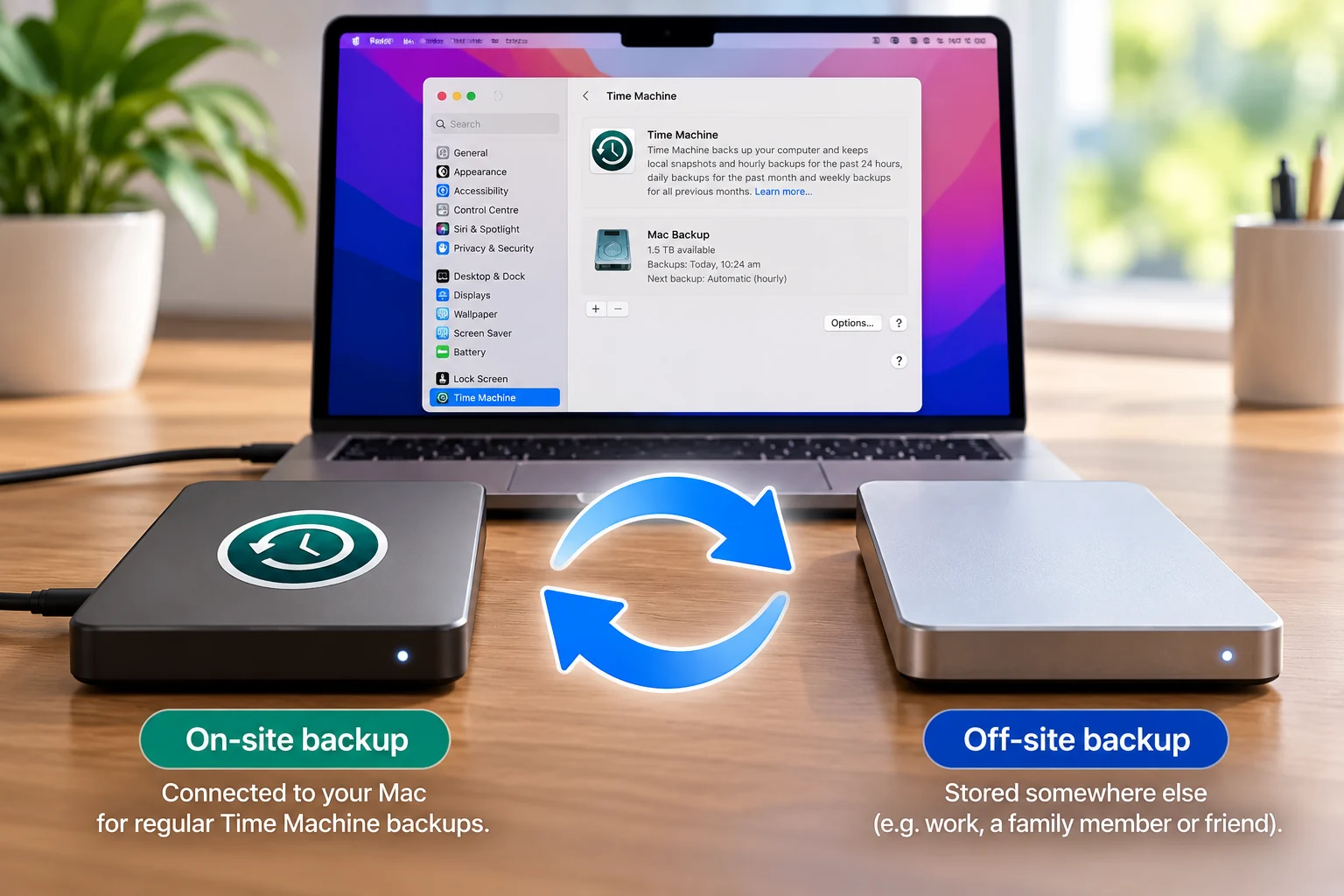
Something I regularly recommend to customers is a dual backup system, with one backup kept at home (on-site) and another stored somewhere else (off-site).
That way, you always have one backup available for everyday use, while the second is safely stored at another location in case something happens to your computer or home.
And it doesn't have to be complicated or particularly expensive.
For many home users, a couple of external hard drives or SSDs can do the job nicely.
Here's how I often suggest setting it up.
Keep one external drive connected to your Mac for your regular Time Machine backups.
Then, on the first day of each month, swap it with your second backup drive.
The drive that's been at home goes off-site, while the other comes home and takes its place.
I like using the first of the month because it's easy to remember.
New month, new backup!
You could even put a reminder in your calendar until it becomes a habit.
The off-site drive might be stored at work, with a trusted family member or friend, or somewhere else secure and away from your home.
I wouldn't recommend leaving it permanently in your car, though, because of the risks of theft and extreme temperatures.
The idea is simple: if something happens to your computer or your home, you still have another copy of your information stored somewhere else.
Of course, you'll want to make sure both drives are properly configured, encrypted where appropriate, and that backups complete successfully after each swap.
And remember that the off-site backup may be up to a month behind, depending on how often you rotate it.
But even that is considerably better than discovering you have no backup at all!
Isn't having one backup enough?
One backup is certainly better than none.
But there's a reason I prefer two.
What happens if your computer fails and your backup drive has also stopped working?
Or if there's a burglary, fire, flood or another event that affects both your computer and the backup sitting beside it?
Having a second copy stored elsewhere gives you another chance to recover your information.
External drives are relatively inexpensive in the overall scheme of things.
Professional data recovery, on the other hand, can cost hundreds or even thousands of dollars, depending on the problem.
And sometimes, if a device is lost, stolen or physically destroyed, data recovery simply isn't possible.
That's why I think spending a little money on a couple of backup drives is a worthwhile investment.
What about online backups?
There are also online backup services available, such as Backblaze, which can automatically back up your computer's information over the internet.
These can be very useful, particularly because the backup is stored away from your home.
However, there are a few things worth considering.
Firstly, there's generally an ongoing subscription fee.
Secondly, if you have a large amount of data, both the initial backup and any future recovery can take quite some time, depending on your internet connection.
And thirdly, some people simply prefer to keep their personal information on drives they physically own and control, rather than relying entirely on an online service.
That's not to say cloud backups are bad. Far from it! They can provide an excellent additional layer of protection.
It's simply that, personally, I still like the old-school approach of an external drive and Time Machine.
I know where the drives are, I know what's happening with them, and I have direct control over my backups.
And one important thing to remember: cloud storage and cloud syncing aren't necessarily the same as having a proper backup.
For example, storing files in iCloud Drive doesn't automatically give you the same protection as maintaining separate, historical backups.
I've touched on that subject on the MacWizardry Tips page, and it's probably worthy of another discussion in its own right!
Don't just back up. Check your backups!
There's one more thing I always recommend.
Every so often, take a few minutes to make sure your backup is actually working.
Open Time Machine settings and check when the last successful backup completed.
Make sure the external drive is still connected and recognised.
And occasionally, try restoring a small test file to confirm that you can actually retrieve information from the backup.
Because having a backup drive sitting beside your computer doesn't help much if it hasn't backed anything up for the last two years!
If you're using two rotating drives, check both of them.
A backup is only useful if the information you need is actually there and can be recovered.
A final thought...
I know backups aren't particularly exciting.
Nobody buys a new Mac and thinks, “Fantastic! I can't wait to set up my backup system!”
Well, perhaps I do. But that's probably because I've seen what happens when people don't have one! 😄
My advice is simple.
Have at least one reliable backup. Preferably two. Keep one somewhere else, and check them regularly.
Set yourself a reminder, establish a routine, and before long it becomes something you do without even thinking about it.
Then, if something does go wrong, there's a much better chance of getting your information back without too much drama.
And hopefully, it's one less occasion where I have to deliver some very bad news.
If you're unsure whether your Mac has a suitable backup system in place, or you'd simply like someone to check that everything is working correctly, I'm always happy to have a chat or look over your current setup.
As the old saying goes...
It's always better to be prepared!
Daniel Kerr - MacWizardry