
Passwords, passwords, and more passwords... Oh my!
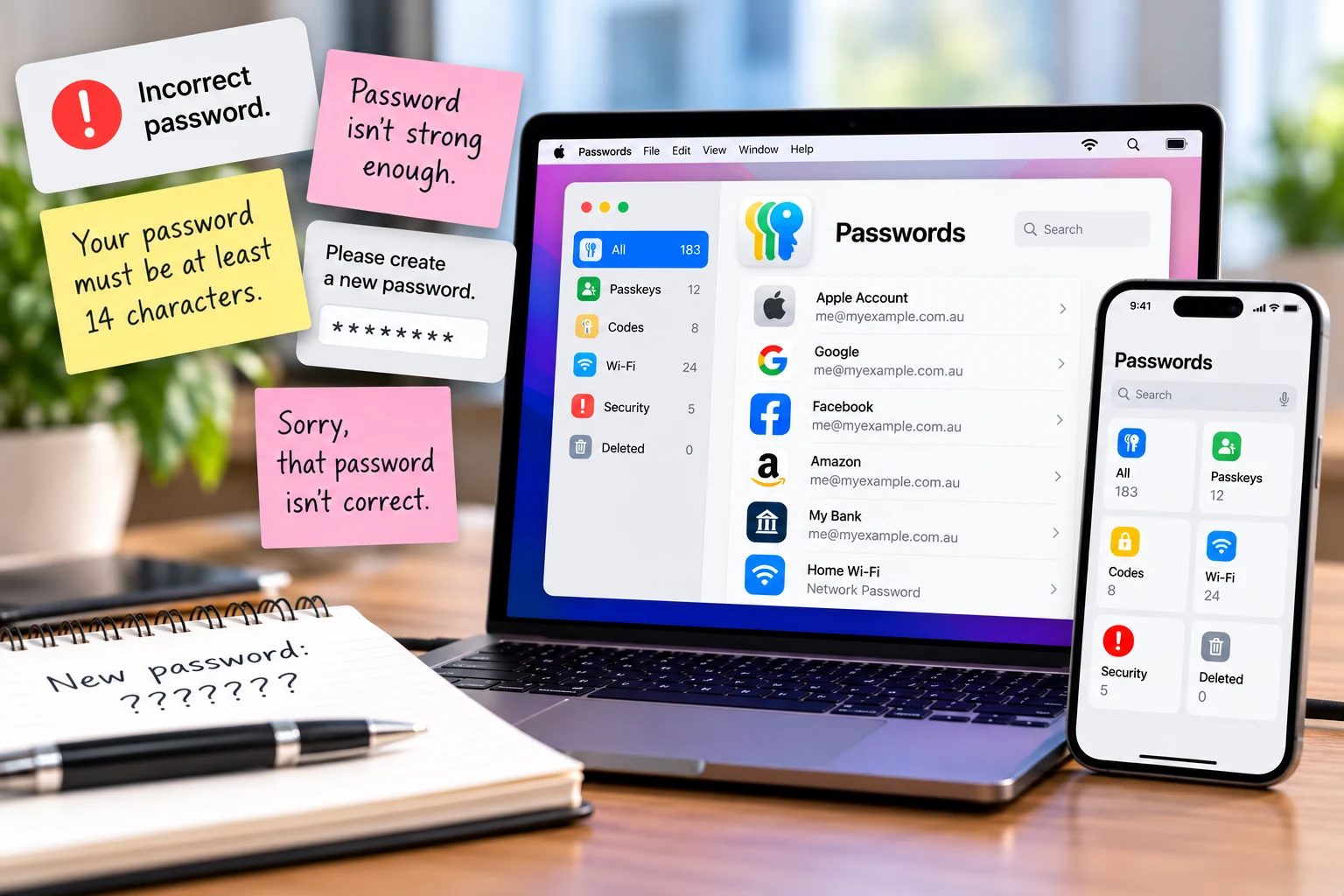
Passwords!
Yes, one of those things we all love to hate.
And there always seem to be so many of them!
You set up an account somewhere, create a password, and everything works beautifully. Then, six months later, you go back to log in and get that wonderful message...
“Sorry, that password is incorrect.”
Or perhaps...
“Your password isn't strong enough. Please create a new one.”
Your new password must contain at least 14 characters, one uppercase letter, one lowercase letter, a number, a special character, one facing east, one facing west...
OK, they don't actually ask for the last two. But some days it certainly feels like they're going to!
Unfortunately, passwords are a necessary part of keeping our information secure. But they can also be a real pain in the rear end!
And something that was considered a perfectly good password ten years ago might not be considered particularly secure today.
“But I'm sure that's the right password!”
Lost passwords, forgotten logins and problems signing into accounts are things I come across quite regularly when helping customers.
I've also had plenty of joking conversations about passwords over the years.
And I can certainly understand the frustration.
Between email accounts, shopping websites, banking, streaming services, social media, subscriptions and everything else, it can feel as though we're expected to remember hundreds of different passwords.
And of course, each website seems to have its own rules about what makes a password acceptable.
The temptation is to make life easier by using the same password everywhere.
But unfortunately, that's one of the things I strongly recommend not doing.
One password for everything? Please don't!
I know it's convenient.
You have one email address, one password, and use them for everything.
Easy to remember!
But what happens if one of those websites suffers a data breach and your login details are exposed?
Criminals may try that same email address and password combination on other websites, hoping you've reused it.
And if you've used the same password for your email, shopping accounts and other services, one compromised password could potentially open the door to several accounts.
That's why I recommend using a different, strong password for every website or service.
It sounds like an awful lot to remember.
Thankfully, these days, you don't have to remember them all yourself!
Apple's Passwords app to the rescue!
One of the useful additions Apple made in September 2024, with macOS Sequoia 15, iOS 18 and iPadOS 18, was introducing a dedicated app simply called Passwords.
Apple had been storing and managing passwords through iCloud Keychain for many years before that, but the new app made everything considerably easier to find and manage.
Previously, Mac users could access some of this information through Keychain Access or System Settings.
Both were useful, but not necessarily the most user-friendly places for someone who just wanted to find a forgotten website password!
The Passwords app brings everything together in one place.
And best of all, it's included with compatible Apple devices.
No additional subscription required.
If you have a reasonably recent Mac, iPhone or iPad running a supported version of the operating system, there's a good chance it's already there.
On your Mac, look in the Applications folder.
On your iPhone or iPad, you might find it on one of your Home Screen pages, or in the App Library. You can also search for Passwords.
Personally, I think it's worth keeping somewhere easy to find, perhaps in the Dock on your Mac or on one of the first Home Screen pages of your iPhone.
Because once you start using it, you'll probably find yourself opening it quite regularly!
So what does it actually do?
Quite a lot, as it turns out.
The Passwords app can help you store and manage:
- Website and app usernames and passwords
- Passkeys
- Wi-Fi passwords
- Verification codes used for two-factor authentication
- Passwords securely shared with trusted family members or other people
When you create an account on a supported website, your Apple device can suggest a strong, unique password and offer to save it.
Then, the next time you visit that website, it can automatically fill in your login details.
No trying to remember whether you used a capital letter, added an exclamation mark or put your dog's (or cat's) birthday at the end!
And if you have iCloud Keychain enabled, your saved passwords can securely synchronise between your approved Apple devices.
So a password saved on your Mac can also be available on your iPhone or iPad.
Very handy!
But isn't putting all your passwords in one place risky?
It's a reasonable question.
After all, if the app contains all those important passwords, you certainly wouldn't want just anyone opening it.
Thankfully, Apple has built security protections around it.
Access to saved passwords requires authentication, such as your device password or passcode, Touch ID or Face ID, depending on the device.
And when synchronising through iCloud Keychain, Apple uses end-to-end encryption to protect that information.
That doesn't mean you can forget about security altogether, of course.
You still need a strong device passcode, a secure Apple Account and care when responding to unexpected requests for verification codes.
But for most people, using a reputable password manager is considerably better than reusing the same password everywhere.
The Security section is worth a look
One feature I particularly like is the Security section of Apple's Passwords app.
This can help identify passwords that may need attention.
For example, it can warn you when a password:
- Is too simple or easily guessed
- Has been reused across different accounts
- Has appeared in a known data leak
You can then review the affected account and, where appropriate, visit the website to change the password.
The app can help you generate and save a stronger replacement.
It's worth spending a little time going through these recommendations, particularly if you've been using the same passwords for years.
You might be surprised at how many old logins you've collected!
And there's no need to try fixing everything in one sitting.
Start with the important accounts, particularly your email and other services that could be used to reset passwords elsewhere.
Then gradually work through the rest.
And now we have... passkeys!
Just when you thought you'd finally worked out passwords, along comes something else!
Passkeys.
Thankfully, this is one of those changes that can actually make life easier.
A passkey allows you to sign in to a supported website or app without needing to type a traditional password.
Instead, you might use Face ID, Touch ID or your device's passcode to approve the sign-in.
Behind the scenes, the technology is designed to be more resistant to phishing and password theft.
Not every website supports passkeys yet, but they're becoming more common.
And Apple's Passwords app can store and manage them too.
If you'd like to know more, Apple has a useful explanation here: About the security of passkeys - Apple Support.
What about banking passwords?
This is one area where I generally suggest being a little more careful.
Although Apple's Passwords app is designed to securely store login credentials, I recommend checking your bank's current terms and security recommendations before deciding how to store your banking login details.
Different financial institutions may have different requirements.
And regardless of whether you save a banking password, never share your banking password, PIN or one-time verification codes with someone who contacts you unexpectedly.
A password manager can make things more convenient, but it doesn't replace being cautious.
What about the old password book?
Ah yes, the little notebook filled with website addresses, usernames and passwords.
I've seen quite a few of those over the years!
And to be fair, I understand why people use them.
When you have dozens or hundreds of accounts, writing everything down can seem like the simplest way to keep track.
The problem is that a notebook can be lost, stolen, left somewhere or become hopelessly out of date.
The same applies to an ordinary spreadsheet full of passwords, particularly if it isn't properly protected.
If someone prefers a written record for a few essential recovery details, it should be stored securely, away from the computer, and kept up to date.
But for managing everyday website passwords, I'd much rather recommend a dedicated password manager.
One little habit I do like, though, is keeping track of when important account details were last checked or changed.
Even a note such as “Checked October 2026” can be helpful when reviewing old information, provided you aren't unnecessarily exposing sensitive details.
What do I use myself?
For many years, I used an app called 1Password.
It was a very useful way of keeping passwords and other information organised and securely stored.
In fact, I still use it occasionally.
But these days, Apple's Passwords app has become my main go-to for website and app logins.
With MacWizardry, I have quite a few different accounts to manage, including wholesaler websites, reseller services, software subscriptions and various business systems.
And I'd much rather have a secure password manager remember those details than try to remember hundreds of different passwords myself!
It also makes it much easier to use a different password for every account, rather than recycling the same old favourites.
A little time now can save a lot of frustration later
If you haven't explored Apple's Passwords app, I'd definitely recommend spending a little time with it.
Open it, have a look at what's already saved, check the Security recommendations and make sure your important passwords are up to date.
You don't need to become a computer security expert.
Even just understanding where your saved passwords are and how to find them can make life considerably easier.
Apple has some helpful information here:
And if you're unsure how to set it up, synchronise it across your devices or tidy up old logins, I'm always happy to help.
And finally... a little password humour!
I couldn't finish an article about passwords without sharing something that made me laugh.
Comedian Michael McIntyre has a great routine about the frustration of creating and remembering passwords.
If you've ever shouted at your computer because it refused to accept yet another password, I suspect you'll appreciate this one!
Watch Michael McIntyre's password routine.
Sometimes it's reassuring to know we're not the only ones who find the whole password business a little ridiculous!
My final advice? Use strong, unique passwords, let a good password manager remember them for you, and try not to throw the computer out the window when a website asks you to create yet another one! 😄
Daniel Kerr - MacWizardry