
Your Mac has a virus! Or does it?
Over the years, I'll occasionally receive a phone call from a worried customer, or have an appointment booked because a frightening warning has appeared on their computer. Perhaps they've been told their Mac has a virus, their iPhone has been hacked, or something has gone terribly wrong.
The first thing I usually do is reassure them.
After more than 25 years of providing Apple support through MacWizardry, and having used Apple computers myself since 1984, I've personally never come across a Mac with a traditional computer virus. Nor have I encountered a Mac that has genuinely been hacked.
That's not to say Macs can't get malware or be compromised. They certainly can. But in my own experience, after checking countless computers over the years, the worrying messages customers have contacted me about have almost always turned out to be something else entirely.
Usually, it's a scam.
Why are Macs generally well protected?
Apple has a number of protections built into macOS, and because Apple designs both the hardware and the operating system, it has considerable control over how they work together. Historically, Macs have also had a smaller share of the computer market than Windows PCs, although that doesn't make them immune to attack.
And perhaps Mac users simply enjoy their computers too much to want to hurt them! (Only joking, of course.)
Macs aren't invincible. Malicious software, deceptive downloads, phishing and account scams can affect anyone. The trick is understanding what you're actually looking at.
So where are all these frightening warnings coming from?
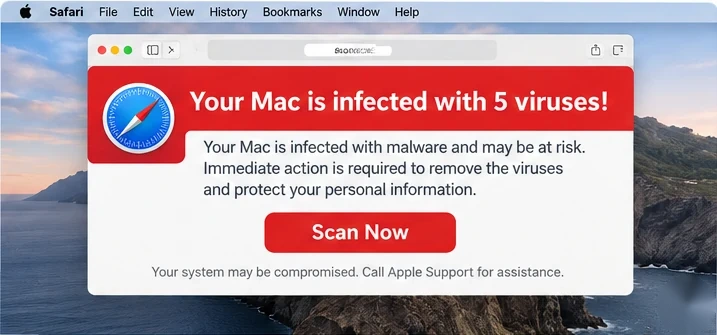
Very often, from a webpage. You might click a search result, follow an advertisement or visit a website that redirects you somewhere unexpected. Suddenly a large warning appears, perhaps flashing red, making noises or claiming that Apple has detected several viruses.
Some even display countdown timers or tell you to call support immediately. But a webpage cannot reliably scan your Mac or iPhone for viruses just because you visited it. A message on a website claiming to have found multiple infections is a very good reason to be suspicious.
Here are a few fictional illustrations of the sorts of warnings scammers use. Select an image to enlarge it.
These are fictional examples created to illustrate common scam techniques. They are not genuine Apple warnings, and the appearance of real scams may differ.
“Call Apple Support immediately!”
That's often the next part of the trick. The warning may show a supposed support number or insist you must speak to someone before you can safely use your computer.
The person answering may pretend to be from Apple, your internet provider or a security company. They might try to sell you an expensive protection package, ask for payment details or persuade you to install software that gives them remote access to your computer.
And that's where things can become genuinely dangerous. Someone who has remote access may be able to see what you're doing or manipulate the computer. Never open your banking website or share passwords and verification codes with an unknown person who has connected remotely.
What can you do to protect yourself?
1. Keep your Mac updated. macOS includes security technologies such as XProtect and Gatekeeper, and Apple regularly updates its protections. You can read more in Apple's platform security documentation.
2. Close suspicious warnings. If a scary alert appears in your browser, don't click its buttons or call any number it displays. On a Mac, try closing the tab or quitting the browser with Command-Q. If necessary, use Command-Option-Escape to force quit. On an iPhone, close the suspicious tab or app. Avoid reopening the same page when you restart the browser.
Simply seeing a fake warning doesn't usually mean your device is infected, particularly if you haven't installed anything or shared information.
3. Check with a reputable scanner if you're concerned. For Macs, Malwarebytes is one established option for checking unwanted software. iPhones work differently from Macs, and apps have additional restrictions, but no device is completely immune to scams or security problems.
4. Be cautious about remote support. Tools such as AnyDesk, TeamViewer, ScreenConnect and Zoho Assist are legitimate remote support products. I use Zoho Assist myself for arranged MacWizardry support appointments. The danger is when an unknown caller or webpage persuades you to install one unexpectedly.
5. Verify who you're speaking to. If someone claims to be from Apple, your bank or your internet provider, stop the conversation and contact the organisation using a number you've found independently from its official website, app or a trusted document. Be careful with sponsored search results that may imitate genuine support pages.
What if you've already given someone access?
End the remote session and disconnect from the internet if you're concerned someone still has control. If you've disclosed banking details or accessed banking while they were connected, contact your bank immediately. Change affected passwords from a trusted device, check for unwanted software and seek assistance if needed.
You can also report suspected scams to Scamwatch Australia.
A final thought...
Scammers have become very good at making messages look urgent, convincing and official. That's why my advice is to pause, don't panic, and verify what's happening before you do anything.
After 25 years of helping Apple users, I can safely say I've spent considerably more time dealing with fake virus warnings than actual computer viruses!
And if you're ever unsure whether a warning is genuine, I'm always happy to help you work it out.
Daniel Kerr - MacWizardry