Choosing the Right Options for Your Mac
Not sure which options you need? This guide explains the differences between Apple's keyboards, pointing devices and display choices, helping you make an informed decision when purchasing your new Mac.
1. Which keyboard should I choose?
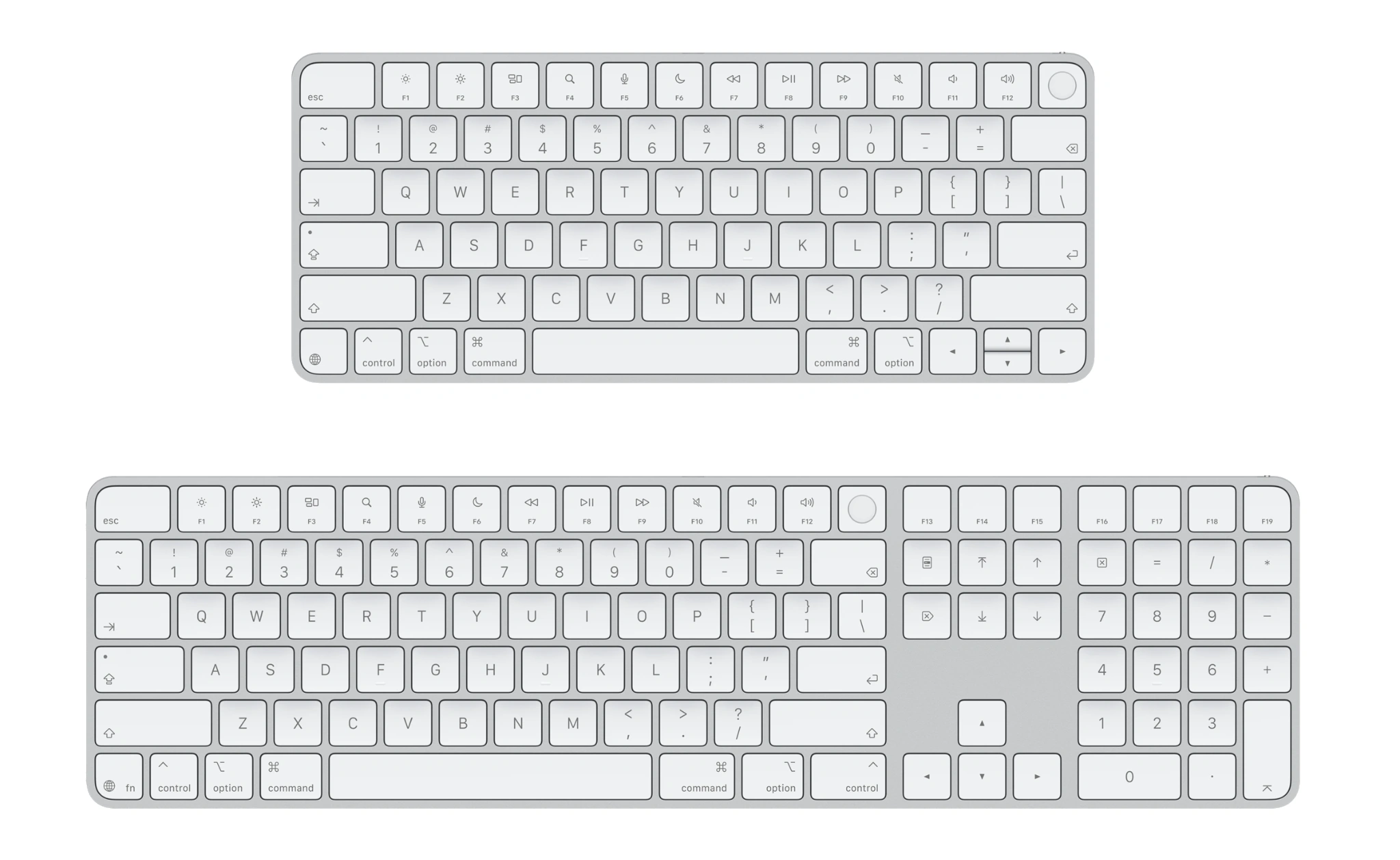
If you're looking to buy a new 24-inch iMac, it comes with Apple's compact Magic Keyboard. Depending on the model, this may also include Touch ID, allowing you to unlock your Mac and approve purchases using your fingerprint.
For most people, the smaller keyboard is perfectly suitable. However, if you do a lot of number entry, accounting or spreadsheet work, it may be worthwhile paying a little extra for the larger Magic Keyboard with Touch ID and Numeric Keypad.
Both sizes can also be purchased separately for use with a Mac mini, Mac Studio, MacBook Neo, MacBook Air or MacBook Pro. When purchased with an iMac, the keyboard is colour-matched to your chosen iMac colour. Separately purchased keyboards are available in Apple's standard finishes.
They're wireless and rechargeable through USB-C, with a charging cable included, so there's no need to keep replacing batteries.
2. Magic Mouse or Magic Trackpad?
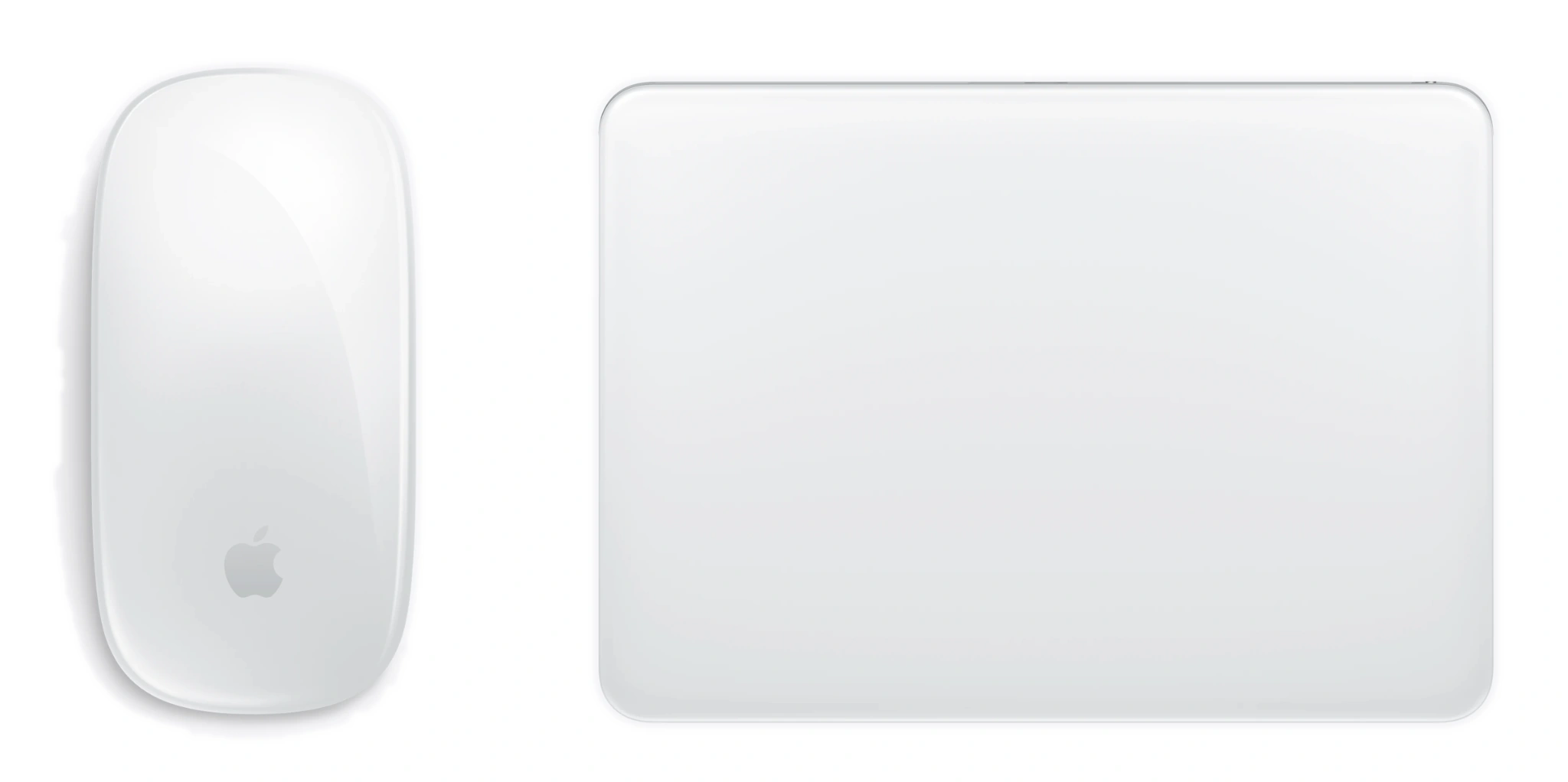
The iMac comes with Apple's Magic Mouse as standard, with the option to choose a Magic Trackpad instead. Both are colour-matched to your iMac. You can also purchase either separately for use with a Mac mini, Mac Studio, MacBook Neo, MacBook Air or MacBook Pro.
Both devices are wireless, rechargeable via USB-C and include a charging cable.
Magic Mouse
If you prefer using a traditional mouse, Apple's Magic Mouse is a good choice. It's designed to glide smoothly across your desk, while its Multi-Touch surface allows you to perform simple gestures, such as scrolling through documents or swiping between web pages.
Magic Trackpad
If you prefer using a trackpad, Apple's Magic Trackpad offers a wider range of Multi-Touch gestures, along with Force Touch technology. Sensors beneath the surface detect how firmly you press, allowing additional functions and gestures that aren't available with a conventional mouse. Its large surface and low-profile design also make it comfortable to use.
3. Standard glass or nano-texture glass?
When purchasing a new iMac or MacBook Pro, some models offer a choice between standard glass and Apple's optional nano-texture glass. But what's the difference, and is it worth paying extra?
iMac 24-inch — 4.5K Retina display
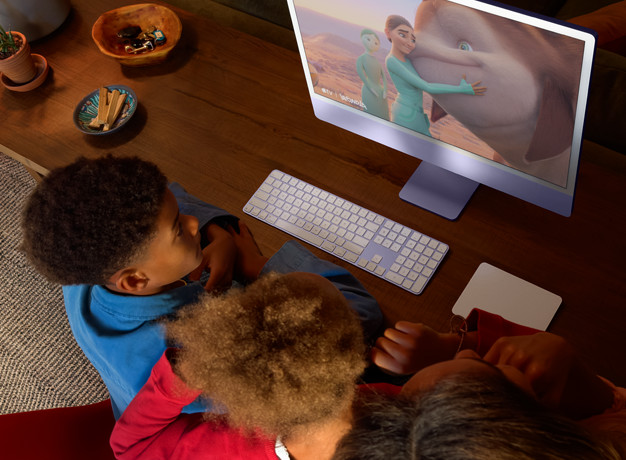
The iMac features a 24-inch 4.5K Retina display offering up to 500 nits of brightness. Standard glass already provides excellent picture quality and visibility for most work environments. On supported configurations, nano-texture glass further reduces reflections and glare, making it particularly useful near windows or under bright lighting.

MacBook Pro 14-inch and 16-inch — Liquid Retina XDR display
The MacBook Pro's Liquid Retina XDR display offers up to 1,600 nits of peak HDR brightness, providing excellent contrast and visibility. The optional nano-texture glass further reduces reflections and glare, which can be particularly helpful in bright environments.
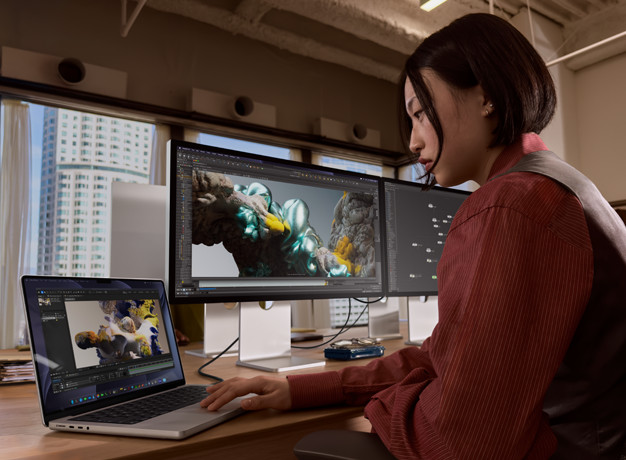

MacBook Pro 14-inch and 16-inch — PROLED XDR display
The newer MacBook Pro models with PROLED XDR displays offer even greater contrast and brightness. The display can reach up to 2,000 nits of peak brightness under supported HDR and outdoor SDR conditions. Nano-texture glass can further reduce reflections and glare in challenging lighting.


So, which glass should I choose?
Standard glass provides excellent clarity, colour and detail while keeping reflections relatively low. For most people working in a typical home or office, it's perfectly suitable.
Nano-texture glass reduces reflections and glare further, particularly near windows, in bright environments or when working outdoors with a MacBook Pro. It can make a noticeable difference in certain lighting conditions, but it isn't necessarily something everybody needs. Apple supplies a special polishing cloth with nano-texture displays for safe cleaning.
4. Unified Memory (RAM) Options
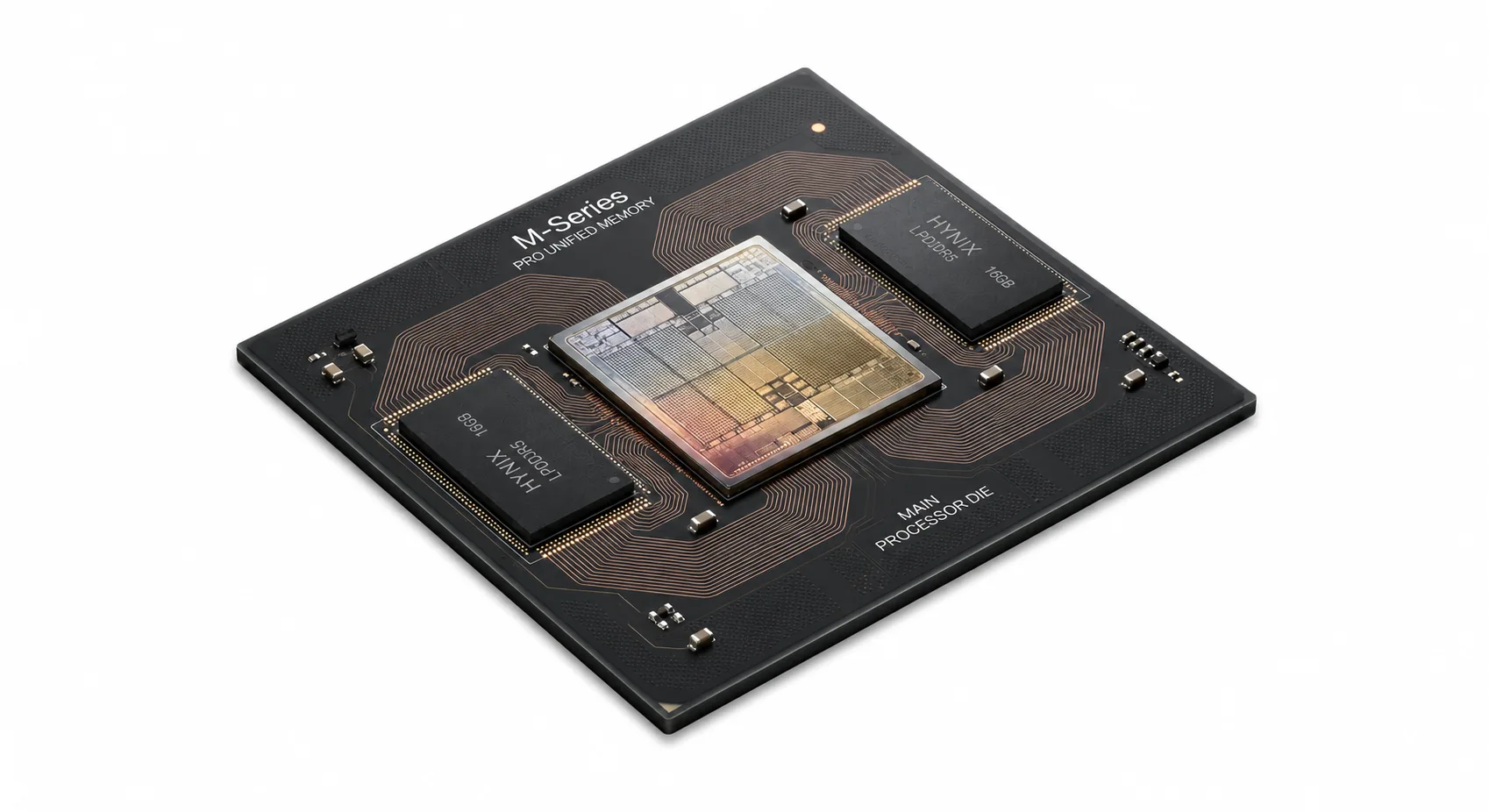
How much can I be doing, or have open, at the same time?
Most new Macs come with at least 16GB of Unified Memory as standard, with the MacBook Neo being an exception at 8GB.
For everyday tasks such as email, internet browsing, documents and general home use, 16GB is generally enough for most people.
However, if you like running lots of applications, having many things open at once, doing more demanding work, or simply want to "future-proof" your Mac a little, then considering an upgrade to 24GB or more may be worthwhile, depending on the model.
Something important to consider
With current Apple silicon Macs, Unified Memory and internal SSD storage aren't designed to be upgraded after purchase, unlike some older models.
What you choose when you buy your Mac is generally what you'll have for the life of the computer.
That's why I always recommend considering not just what you need now, but what you might need in the future.
For example, spending an extra $300 to upgrade from 16GB to 24GB (on models where this option is available) could potentially extend the useful life of your computer. That's certainly preferable to finding yourself short of memory two or three years down the track and having to consider replacing the entire computer.
How much memory might you need?
The following is a rough guide to help you decide:
| Memory | Suitable for |
|---|---|
| 16GB | Everyday tasks, email, internet, documents and general home use |
| 24GB–32GB | More demanding multitasking, photography, larger applications and having lots of things open at once |
| 48GB–64GB | Professional photo or video editing, software development and heavier workloads |
| 96GB+ | Specialist professional work requiring substantial amounts of memory |
These are general guidelines, and not every memory configuration is available on every Mac.
5. Solid State Drive (SSD) Storage Options
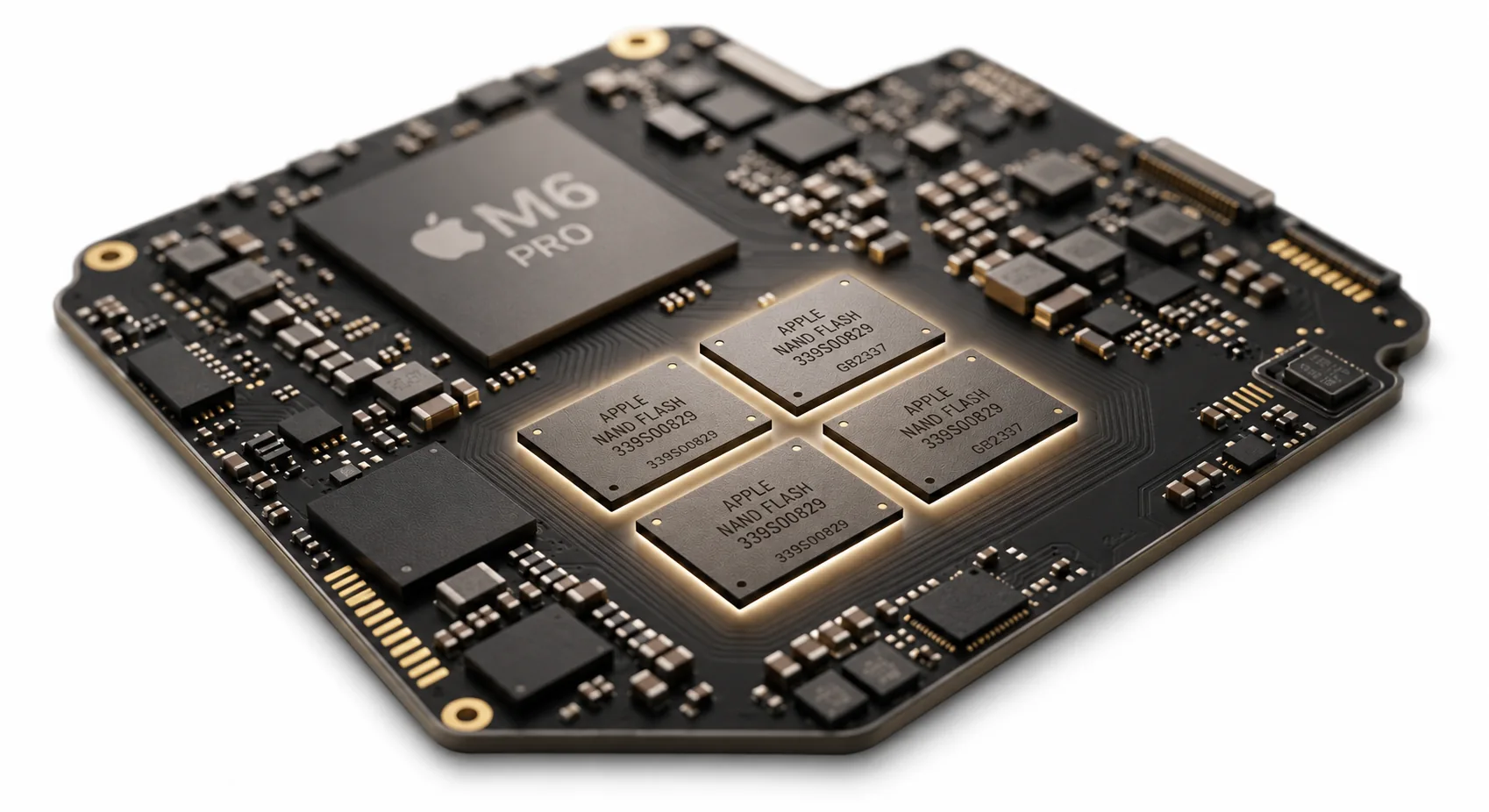
How much "stuff" can I store on my computer? Think of it like the filing cabinet of old.
When considering what size SSD to choose, I generally start by looking at how much storage your current computer has, and more importantly, how much of that storage you're actually using.
I also take into account how long you've owned your computer and how long you're planning to keep the new one.
A rough "rule of thumb" I sometimes use is to allow for up to double your current storage usage when planning for the years ahead. It's not an exact science, but it can be a useful starting point.
Here's an example
Let's say you have a 2015 iMac with a 1TB hard drive, and you're currently using around 380GB of storage.
Using my rough doubling rule, you might allow for approximately 760GB of storage usage in the years ahead. That's still below 1TB, so choosing a new Mac with a 1TB SSD would probably be a sensible option.
However, let's say you've had that same iMac for years and have only used 80GB of its 1TB drive. In that situation, a new Mac with a 256GB or 512GB SSD may be perfectly adequate, depending on your future needs.
The important thing is to consider how your storage requirements might change, particularly if you take lots of photos, store music or videos, or work with larger files.
Remember, you generally can't upgrade it later
Just like Unified Memory, the internal SSD storage in current Apple silicon Macs isn't designed to be upgraded after purchase. So again, it's worth thinking ahead.
On some models, spending an additional $300–$450 to increase the internal storage could be a better investment than running out of space a few years later and finding yourself needing a replacement computer. And while external drives are available, having enough internal storage from the beginning is generally much more convenient.
What about iCloud?
One thing I always like to point out is that just because your files are "in the cloud", that doesn't mean you should rely on that as your only copy.
I generally recommend keeping copies of your important files on your Mac, along with a proper backup. I've also covered this in more detail on my FAQ page, where I explain some of the differences between iCloud, synchronisation and backups.
How do I check how much storage I'm currently using?
On most current Macs, go to Apple menu () → System Settings → General → Storage to see how much storage is being used and how much space is available.
On older versions of macOS, you can usually find this under Apple menu () → About This Mac → Storage.
For example, you might see 643GB available of 1TB. This is useful information to provide when asking me for a quote, as it helps me recommend a new Mac with enough storage for both your current and future needs.
Still not sure?
Get in touch with me and I'll help you choose the options that best suit your needs and budget. There's no point paying extra for something you don't really need — but sometimes the right upgrade makes a big difference every day.